
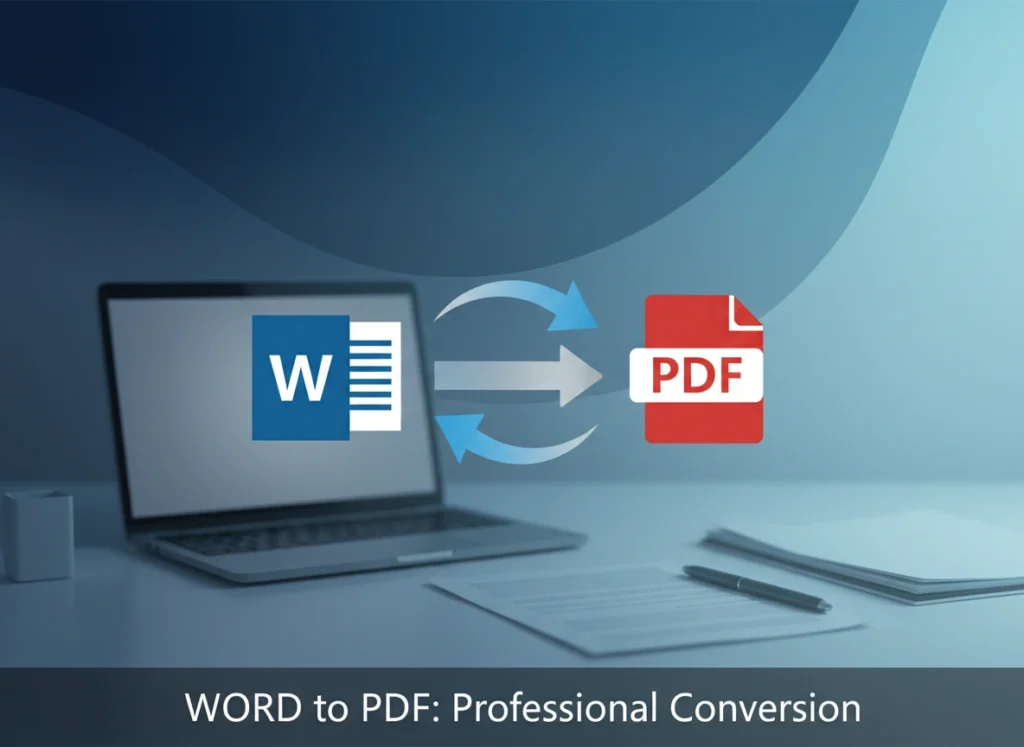

In business communication, the way you present information is just as important as the information itself. The choice between document formats can significantly impact how your work is perceived, shared, and preserved. While Microsoft Word is an excellent tool for drafting and editing, the Portable Document Format (PDF) has established itself as the gold standard for final, professional documents. Understanding why and when to convert your Word files to PDF is crucial for maintaining professionalism and ensuring seamless communication.
This article explores the compelling reasons to make PDF your format of choice for professional use. We will cover the core benefits of PDF, compare it directly with Word, and provide practical scenarios where PDF is the superior option. By the end, you will have a clear understanding of how to leverage this simple conversion to enhance your professional output.
An Introduction to Word and PDF
Before diving into the benefits, let’s briefly define these two ubiquitous formats.
Microsoft Word (.doc, .docx): Developed by Microsoft, Word is a powerful word processing program. Its primary function is to create and edit text-based documents. It offers extensive formatting options, collaboration features like track changes, and dynamic templates. Word files are designed to be live, editable documents, making them perfect for drafting reports, writing proposals, and collaborative work.
Portable Document Format (.pdf): Created by Adobe, the PDF was designed to present documents consistently, regardless of the software, hardware, or operating system used to view them. A PDF file encapsulates a complete description of a fixed-layout document, including text, fonts, vector graphics, and raster images. It functions like a digital snapshot of the final document, prioritizing consistency and preservation over editability.
The Professional Benefits of Using PDF
Converting your final drafts from Word to PDF offers a host of advantages that are essential in a professional environment. These benefits center around consistency, security, and accessibility.
Universal Compatibility and Consistency
The single greatest advantage of a PDF is its ability to look the same everywhere. When you send a Word document to a colleague, client, or hiring manager, you risk it appearing differently on their screen. Discrepancies in software versions, operating systems (Windows vs. Mac), or even default font installations can wreak havoc on your carefully crafted layout. Margins can shift, images can move, and special fonts can be replaced, resulting in a document that looks unprofessional and disorganized.
A PDF solves this problem entirely. It locks in your formatting, ensuring that your document appears exactly as you intended, every single time. This reliability is non-negotiable when submitting critical documents like legal contracts, financial reports, resumes, or client-facing proposals.
Enhanced Security Features
Business documents often contain sensitive or confidential information. PDFs offer robust security options that are not as readily available or user-friendly in Word. You can protect your document in several ways:
- Password Protection: You can set a password to restrict who can open and view the document.
- Permission Settings: You can go a step further and control what users can do with the document once it’s open. This includes restricting printing, copying text or images, and editing the content.
- Redaction: For highly sensitive legal or government documents, you can permanently remove specific text or images from the file.
These security layers make PDF the ideal format for sharing internal memos, strategic plans, and any document containing proprietary data.
Preserving File Integrity
A Word document is inherently editable. While this is great for collaboration, it becomes a liability when you share a final version. An recipient could accidentally (or intentionally) alter the content, leading to confusion or misrepresentation of information.
A PDF, by its nature, is a read-only format. It acts as a final, archived version of your work. This ensures the integrity of the document from sender to receiver, providing a single source of truth that cannot be easily tampered with. This is why legal agreements, invoices, and official certificates are almost always distributed as PDFs.
Smaller File Sizes
While not always the case, PDFs are often smaller than their Word counterparts, especially for documents containing many images or complex formatting. PDF uses advanced compression algorithms for images and graphics without a significant loss in quality. Smaller file sizes are easier and faster to email, download, and store, which improves efficiency and reduces strain on network resources and server space.
Word vs. PDF: A Direct Comparison
|
Feature |
Microsoft Word (.docx) |
Portable Document Format (.pdf) |
Professional Verdict |
|---|---|---|---|
|
Formatting |
Dynamic and system-dependent. Layout can change based on the viewer’s device, software version, or fonts. |
Fixed and self-contained. The layout, fonts, and images are locked, ensuring a consistent appearance on any device. |
PDF for final distribution to guarantee professional presentation. |
|
Editability |
High. Designed for easy creation and modification of content. Supports collaborative features like comments and track changes. |
Low by design. Intended as a final, read-only format. Editing requires specialized software and can be cumbersome. |
Word for drafting and collaboration; PDF for final, unalterable versions. |
|
Security |
Basic password protection to open or modify is available, but it’s less robust and offers fewer granular controls. |
Advanced security options, including passwords for opening, permissions for printing/copying, and content redaction. |
PDF for any document containing sensitive or confidential information. |
|
Compatibility |
Best viewed with Microsoft Word. Other programs may struggle to render formatting correctly. |
Universal. Can be opened by numerous free readers on virtually any operating system (Windows, macOS, Linux, iOS, Android). |
PDF for broad accessibility without requiring specific software. |
|
File Size |
Can become large, especially with high-resolution images and embedded objects. |
Generally smaller due to effective compression algorithms, making them easier to share and store. |
PDF for efficient email and web distribution. |
Real-World Scenarios: When to Choose PDF
Understanding the theory is one thing, but seeing it in practice clarifies the choice. Here are common professional situations where PDF is the only appropriate choice.
- Resumes and Cover Letters: When you apply for a job, your resume must look perfect. Sending it as a PDF ensures that the hiring manager sees the exact design you spent hours perfecting, regardless of what computer they use.
- Contracts and Legal Agreements: The terms of a contract must be unalterable. A PDF provides a secure, read-only document that can be digitally signed, creating a legally binding record that protects all parties involved.
- Invoices and Financial Reports: Financial data must be accurate and presented clearly. A PDF prevents accidental changes to figures and ensures that tables and charts are displayed correctly.
- Proposals and Portfolios: When you showcase your work to a potential client, presentation is key. A PDF preserves your branding, layout, and high-quality images, presenting a polished and professional image of your company.
- Ebooks and White Papers: For distributing published content, a PDF ensures a consistent and high-quality reading experience for your audience across all devices.
Tips for Converting Word to PDF Effectively
Converting your document is simple, but a few tips can ensure a seamless transition from draft to final version.
- Use the “Save As” or “Export” Function: Modern versions of Microsoft Word have a built-in PDF converter. The most reliable method is to go to
File > Save Asand select PDF from the dropdown menu, or useFile > Export > Create PDF/XPS Document. - Check Your Options: Before saving, click on “Options.” Here, you can specify things like the page range to convert and, more importantly, optimize the file for either “Standard (publishing online and printing)” or “Minimum size (publishing online).” For most professional uses, “Standard” is the best choice as it preserves quality.
- Proofread the PDF: Always open the newly created PDF to give it one final review. Check that all your formatting, images, and hyperlinks have transferred correctly. Hyperlinks in Word should remain clickable in the PDF, which is a crucial detail to verify.
- Name Your File Professionally: Use a clear and descriptive file name. Instead of
document1_final_final.pdf, use something likeProposal_YourCompany_ClientCompany_Date.pdf. This looks more professional and helps with organization.
Conclusion: The Final Step to Professionalism
While Microsoft Word is an indispensable tool for content creation and collaboration, its role should end once the final draft is complete. For distributing, sharing, and archiving professional documents, converting to PDF is not just a suggestion—it is a necessity.
The PDF format provides universal compatibility, preserves your meticulous formatting, secures your content, and ensures the integrity of your message. By making the simple act of converting from Word to PDF a standard part of your workflow, you safeguard your work against technical glitches and present yourself and your organization in the most polished, reliable, and professional light. It is the final, critical step in ensuring your document makes the right impression, every time.
Please click here for more info